Create your account and company profile
Start here if you are new to BidCamel. You will finish with a company profile you can review and matching opportunities you can explore.
Read the video transcript
Start with Create your account. Enter your work email and choose a password. Read the terms before continuing, then verify your email. This demonstration does not create another account. After email verification, BidCamel guides you through a short company setup conversation. Answer in your own words, or choose an answer when one is offered. Review the company profile as it takes shape. Check the company name, services, work codes and operating area. Correct information that needs review before relying on your matches. Your company information helps BidCamel find relevant opportunities. You can return to My Company later to update it. The screens and example records in this beta may change.
The video tours the sign-up and setup screens with a demonstration company. Complete email verification in your own inbox; the recording does not create a new account.
Before you start
Section titled “Before you start”Use an email inbox you can access. Have a short description of your work and the places you serve. A SAM.gov UEI—the 12-character identifier for your organization—can help fill your profile, but you can continue without one.
Step by step
Section titled “Step by step”-
Create your account
Open Sign up. Enter Work email, Password and Type the password again, then choose Create my account. Read the linked terms and privacy notice before continuing. Continue with Google appears only when that sign-in option is enabled.
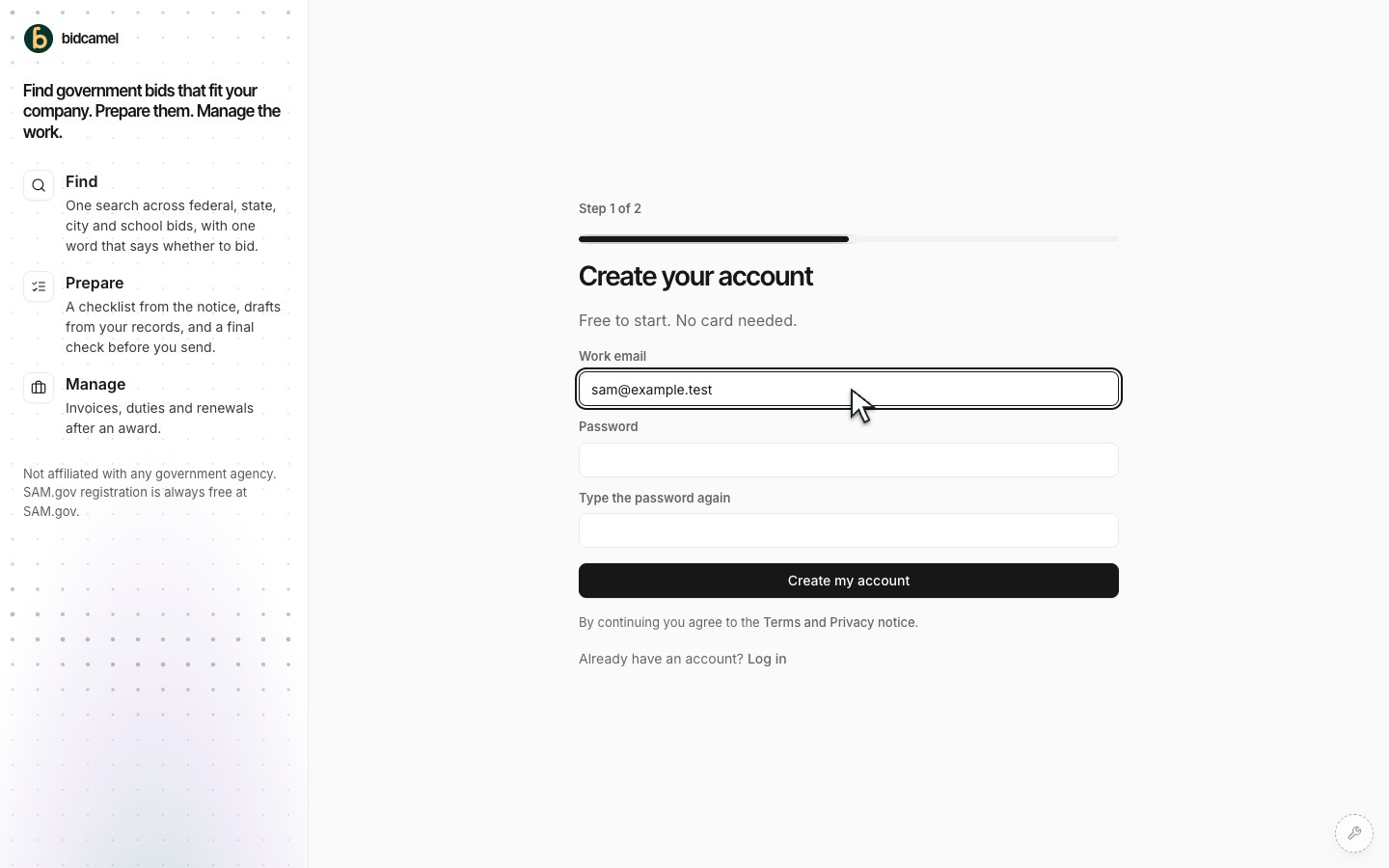
The account-creation form. Never share a screenshot that reveals a password or verification code. -
Verify your email
Open the verification email, enter its latest six-digit code and choose Verify my email. If it does not arrive, check spam, confirm the address and use Send a new code. Use Use a different email if the address was wrong.
-
Answer the setup chat
Tell BidCamel your name, whether you work for your own business or clients, your company name and the kind of work you do. If asked about SAM.gov, choose the answer that is true. Look up your UEI or company name when available; check imported facts before keeping them.
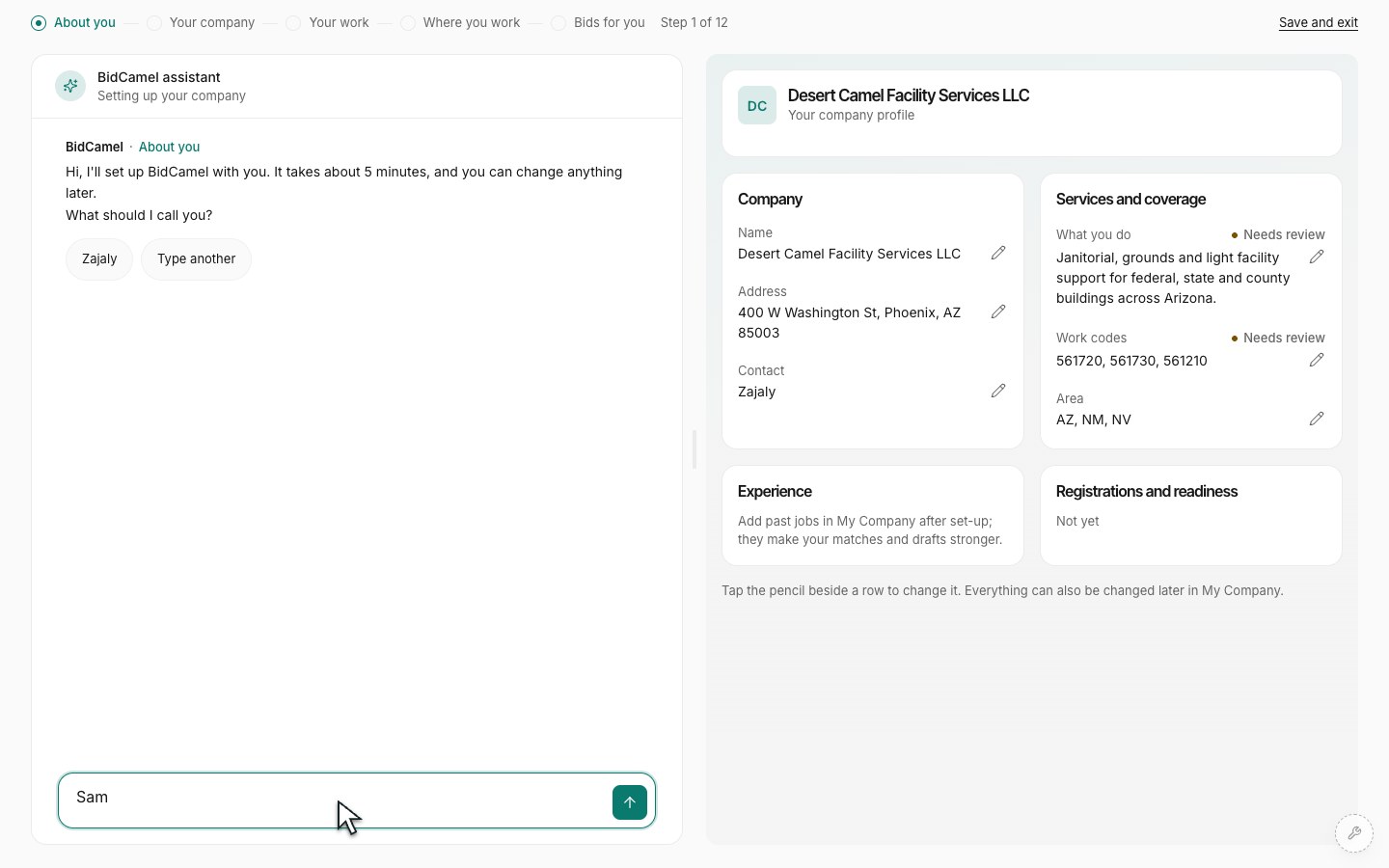
The setup conversation collects your company details in context. -
Check your work and service area
Review the suggested work codes and keep only those that describe the work you want. Choose where you can take on work. Review the profile, correct mistakes and check any AI suggestion before accepting it. Suggestions are a starting point, not proof of a certification or eligibility.
-
Finish and explore
Choose Finish and see bids when you are ready. You may add more company information now or return to Company later. Check any capability statement before saving it. Open a matching opportunity to read it; the fit grade does not commit you to a bid.
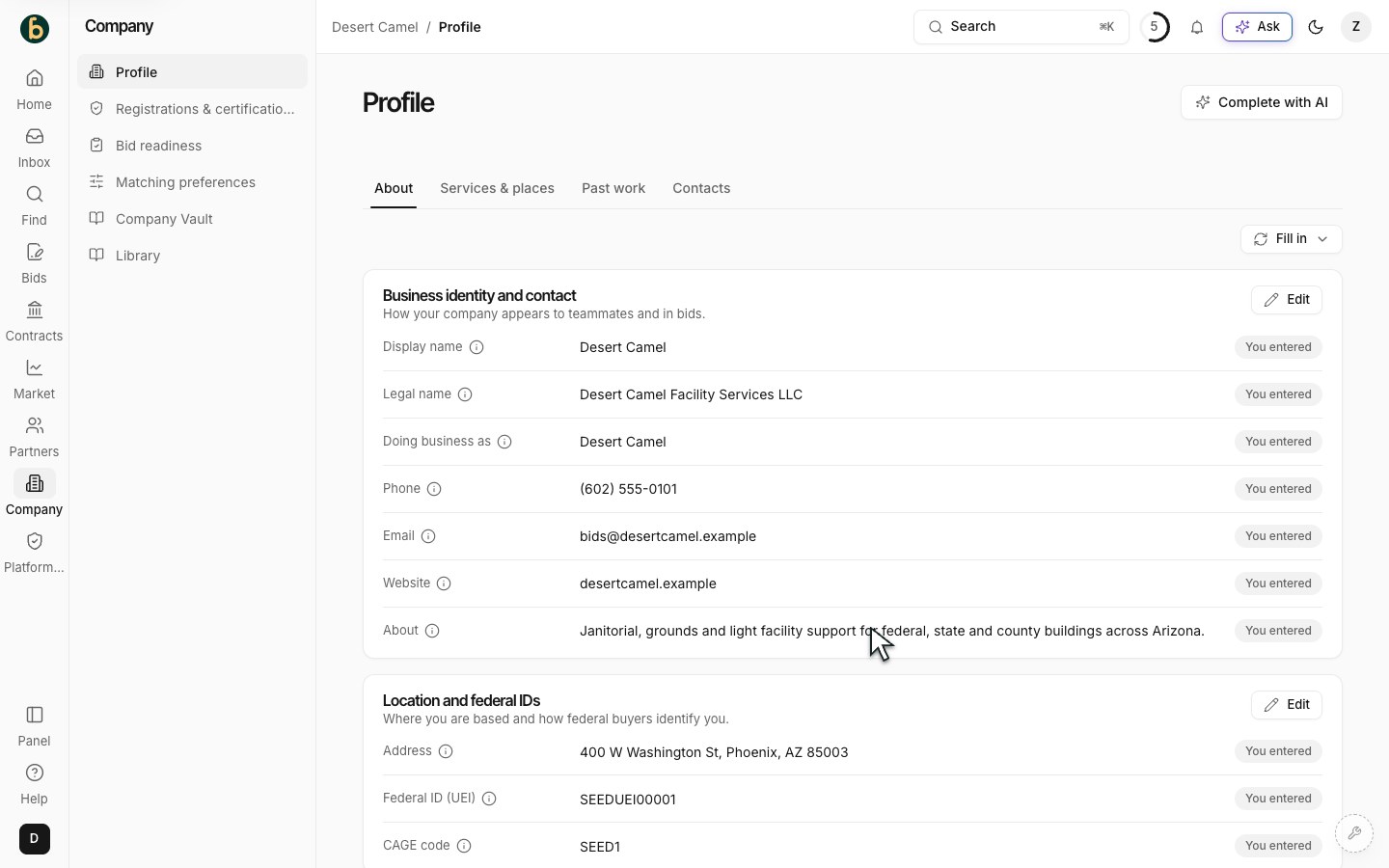
Your saved company profile is available for review and later improvement.
What should be ready
Section titled “What should be ready”Your company profile is available in the app and you can open opportunities. Reopen Company to check that the details you intended to keep are there.
If something does not work
Section titled “If something does not work”I already have an account
Section titled “I already have an account”Use Log in instead of creating a second account. If your session ended, sign in again and return to the page you were using.
I am not registered on SAM.gov
Section titled “I am not registered on SAM.gov”Choose the truthful setup answer and continue. BidCamel setup does not register your company with SAM.gov.
A suggested fact is wrong
Section titled “A suggested fact is wrong”Correct it before you continue. Keep unsupported certifications, experience and claims out of your profile.