Find and shortlist an opportunity
Find work worth a closer look. Shortlisting keeps an opportunity for review; starting a bid is a separate decision.
Read the video transcript
Open Find, then Explore opportunities. Your matches uses your company information. Switch to All when you want a broader search. Search a title or buyer. Here we look for window cleaning. Review the deadline, buyer and location before opening a notice. A fit grade is a starting point, not a decision to bid. Open the notice and read its details and buyer attachments. Check requirements and how questions and responses must be sent. Estimates and AI summaries do not replace the original notice. Use Shortlist to keep an opportunity under consideration. My lists brings shortlisted notices together. Start bid opens the decision to move into bid preparation; it does not submit an offer.
Before you start
Section titled “Before you start”Sign in and check that the right company is selected. A more complete company profile helps BidCamel show relevant matches.
Step by step
Section titled “Step by step”-
Open Explore opportunities
Open Find → Explore opportunities, or go directly to Explore. Use Your matches for company-focused results or All for a broader search. On a phone, use the Find tab or More to reach the same destination.
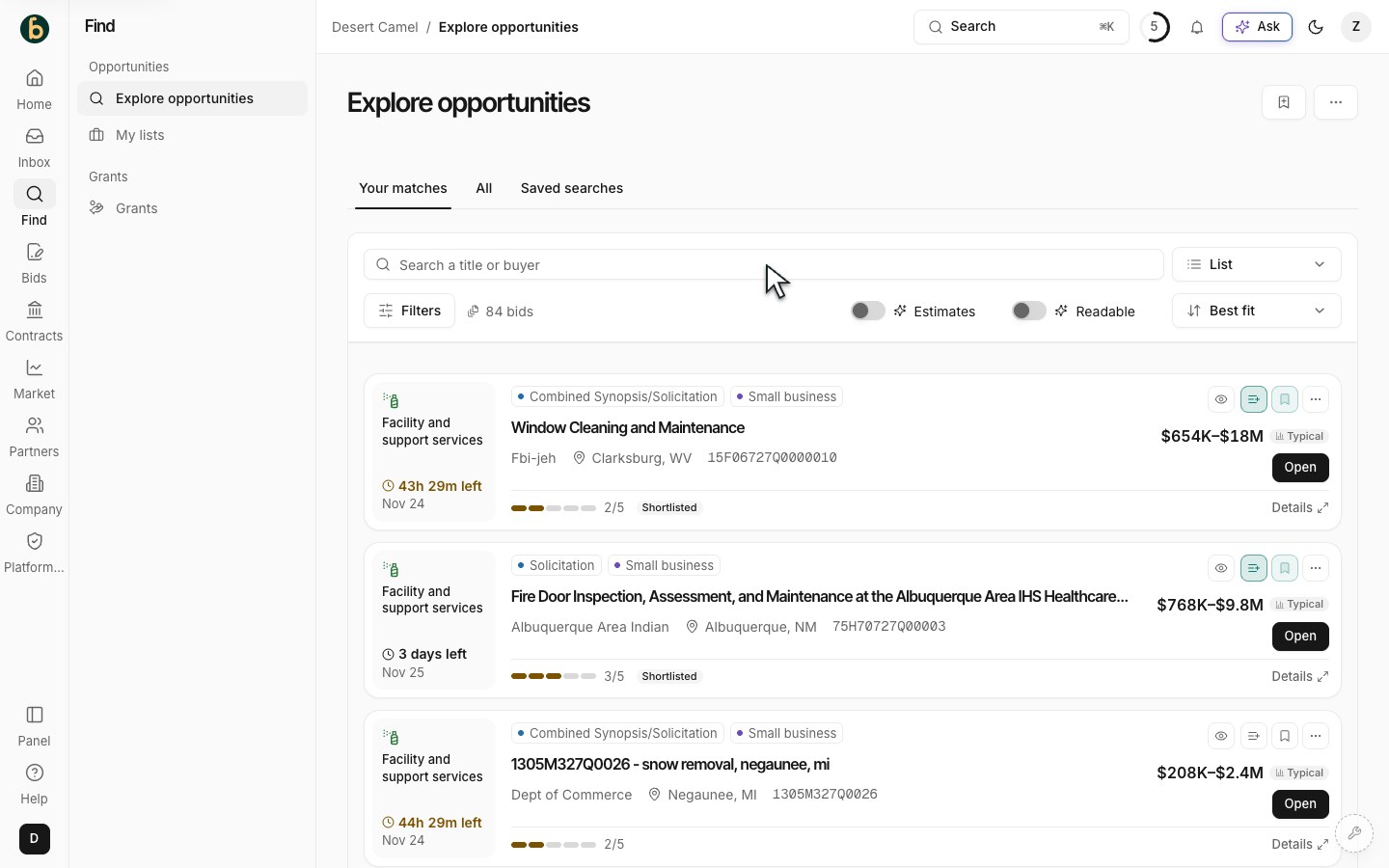
Explore opportunities is the starting point for searching notices. -
Search and narrow the results
Search using words that describe the service or product you provide. Use the available filters for the work, location, deadline or other relevant facts. Change one or two filters at a time. If nothing matches, remove a filter or use fewer words.
-
Read the notice before deciding
Open a result. Check the buyer, work, location, response deadline and any questions deadline. Read the official notice, attachments and amendments. A fit grade out of five is an aid to review; it is not confirmation that your company qualifies or will win.
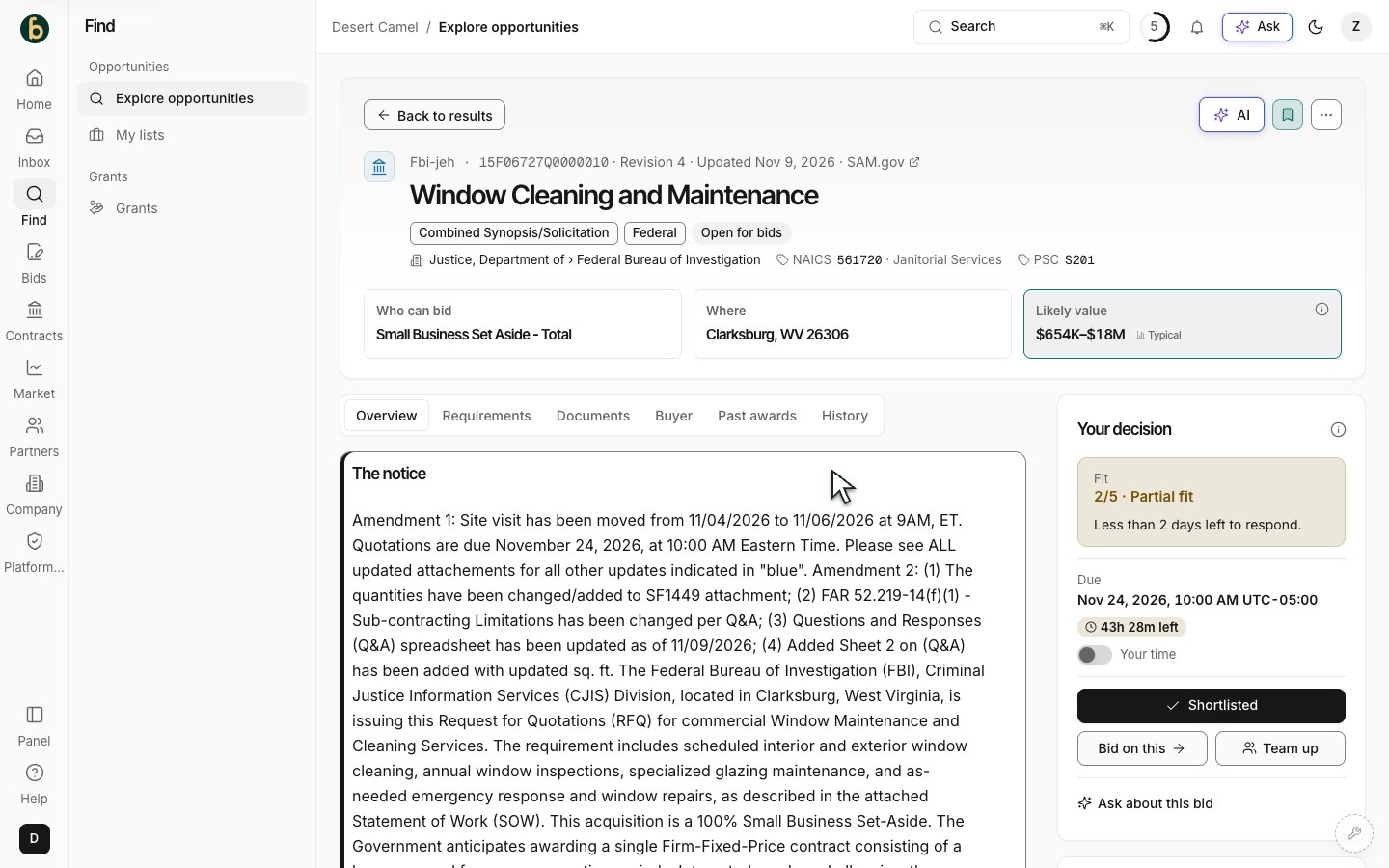
Read the notice and source material before deciding whether to pursue it. -
Keep it in Shortlisted
Choose Shortlist for an opportunity you want to review. Open My lists → Shortlisted to find it again. Return to that list after reloading to check that your choice was saved. You can keep several opportunities without starting bids on all of them.
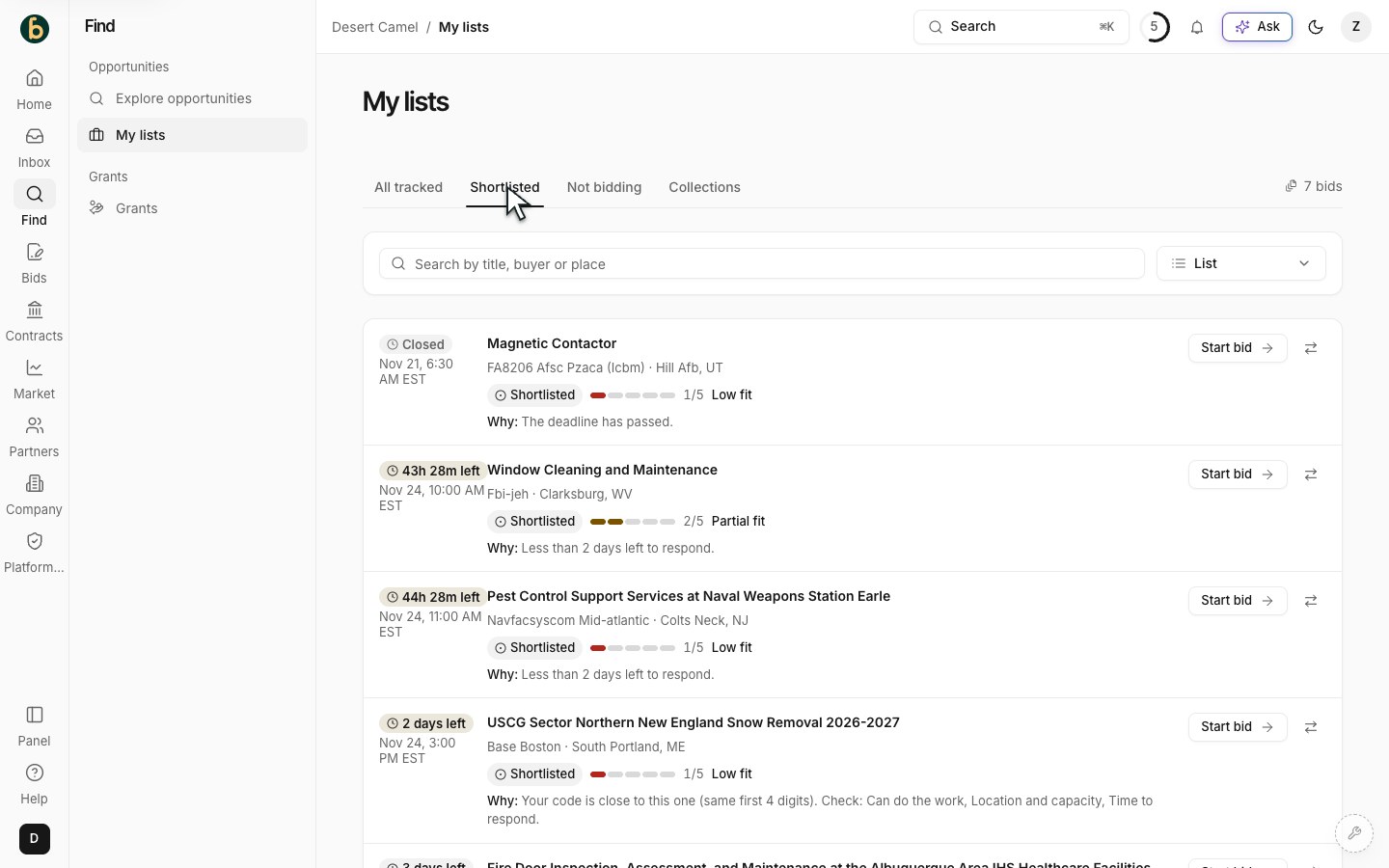
My lists keeps the opportunities your company has shortlisted. -
Start a bid when you are ready
From the shortlisted opportunity, choose Start bid and complete the decision shown. Confirm your team wants to proceed, or choose the teaming path if appropriate. The bid workspace then opens, and the active bid is available from Bids.
What should be ready
Section titled “What should be ready”The shortlisted opportunity is in My lists. After a separate Start bid decision, its preparation work is available from Bids.
If something does not work
Section titled “If something does not work”I cannot find the opportunity again
Section titled “I cannot find the opportunity again”Check My lists → Shortlisted, clear the list search and confirm you are in the same company. Active bids live in Bids.
The notice is closed or changed
Section titled “The notice is closed or changed”Reopen the official source and amendments. Do not rely on an earlier screenshot or an old deadline.
Shortlist or Start bid is disabled
Section titled “Shortlist or Start bid is disabled”Read the explanation beside the action. Your role, company access or the notice state may limit what you can change.